Background
I've been building out a home radio lab over the past few months — having gotten my Foundation amateur radio licence (and now working on my Intermediate/Full license), experimenting with Meshtastic mesh networking, and planning a VHF/UHF gateway linking PMR446 to the amateur radio network via SVXLink. Part of that journey has involved picking up an RTL-SDR Blog V4 dongle — and one evening I decided to actually sit down and use it.
The Hardware
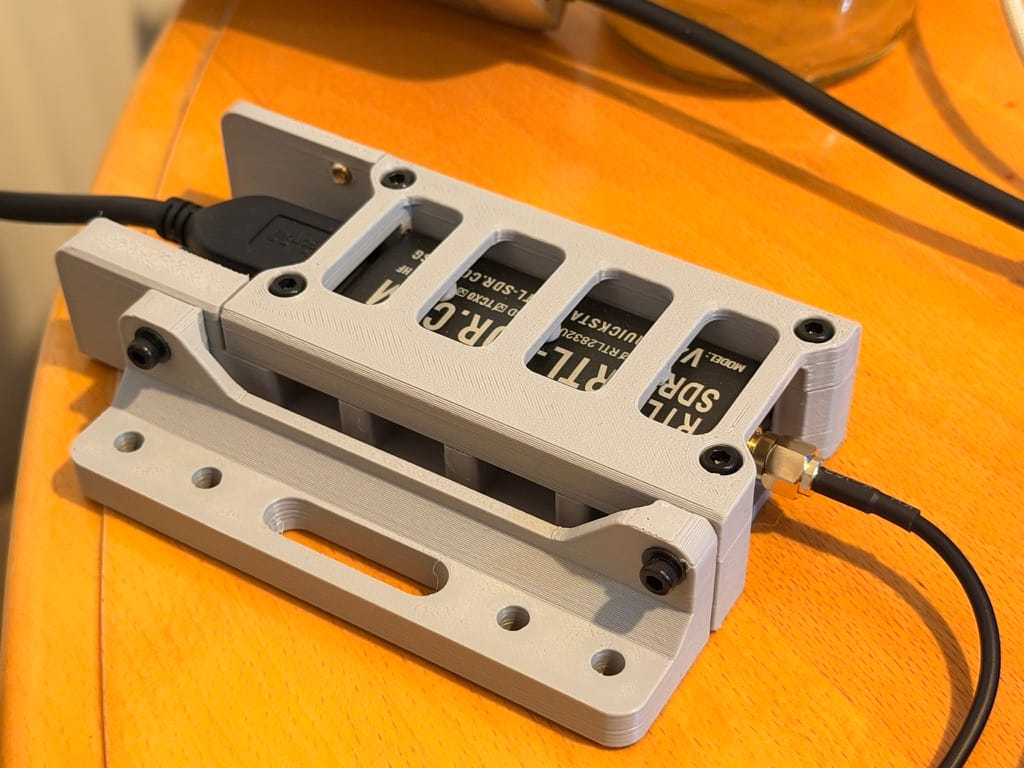
The RTL-SDR Blog V4 is a significant step up from generic RTL-SDR clones:
Built-in HF direct sampling — proper upconverter, allowing reception of HF bands without additional hardware. A temperature-compensated crystal oscillator (TCXO) for good frequency stability, a bias-Tcapable of powering an inline LNA at 4.5V, and an R828D tuner chip with improved noise figure over older R820T2-based devices.
The antenna for the session was the standard RTL-SDR Blog dipole kit — a Y-shaped balun/splitter with two telescopic elements that form an adjustable dipole. Much better than the stubby whip most SDRs ship with, and the adjustable length means you can tune it for different frequency ranges.
Software: SDR++ on macOS
For macOS, SDR++ (SDRPlusPlus) is the go-to. It's native, modern, low CPU usage, and the RTL-SDR V4 is recognised immediately. Download from sdrpp.org, plug in the dongle, select RTL-SDR as the source and you're running within a couple of minutes.
SDR++ tip: Start with gain around 30–35 on the RTL-SDR gain slider. Too high and the front end overloads, producing intermodulation products that show up as phantom signals. Too low and weak signals disappear into the noise floor. Adjust during a session as signal strengths vary.
The waterfall display is the most immediately useful feature — a scrolling spectrum view that shows signal activity visually before you even know what frequency you're looking at. Signals appear as bright lines or blocks against the blue noise floor background.
What I Listened To
FM Broadcast — First Signal
The very first thing I tried was FM broadcast — tuning to BBC Radio 2 around 90.1 MHz in WFM mode. Instant, clear audio. It's the obvious sanity check and confirmed everything was working immediately. Satisfying in a completely unambitious way. Got to listen to Gary Davis for 15 minutes...
Airband
Being in Crowland, Lincolnshire at the time, I was sitting in the middle of a triangle of active military airfields — RAF Coningsby (Typhoons, ~20 miles north), RAF Waddington (ISR aircraft, ~25 miles northwest), and RAF Marham (F-35Bs, ~35 miles east). On paper, ideal territory for airband monitoring.
In practice, I didn't manage to pull anything in on this first session — likely a combination of the indoor antenna, element length not being optimised, and timing. Something to return to with the QFH and a better antenna position.
Airband uses AM (Amplitude Modulation) — specifically DSB-AM, double sideband amplitude modulation. This has been the aviation standard since the early days of radio and hasn't changed. AM allows multiple transmissions to partially overlap and still be intelligible, which matters when several aircraft key up simultaneously on a busy frequency. Use AM mode in SDR++, bandwidth around 8–12 kHz.
VHF civil airband: 118–136 MHz UHF military airband: 225–400 MHz
For the dipole, element length for airband:
- VHF (125 MHz): ~60cm per arm
- UHF military (300 MHz): ~25cm per arm
Orientation: V-shape pointing downward at approximately 120 degrees, approximating vertical polarisation which suits ground-to-air communications.
The 144 MHz Beacon
Scanning the bottom of the 2m amateur band I spotted a faint yellow line at 144.001 MHz with a slight chirp. Switching to CW mode with a narrow 500 Hz bandwidth revealed something — faint, but definitely there. A repeating pattern consistent with a morse beacon ident.
CW reception technique: Rather than tuning directly to the carrier frequency, tune slightly offset (100–500 Hz away) so the carrier falls within your audio passband as an audible tone. A carrier at 144.001 MHz tuned at 144.000 MHz in USB mode produces a 1 kHz tone — much easier to copy than near-silence. The chirpcharacteristic of older beacons is caused by oscillator frequency instability on keying — each time the carrier keys on it pulls slightly in frequency before settling, producing the characteristic rising tone.
PMR446
I scanned across the PMR446 channels but didn't pick up any activity on this occasion — the fens are pretty dead and it was a quiet evening. The waterfall was clean across the band, which at least confirmed the dongle was tuning correctly to that range. I'd read that during harvest and produce picking time, the PMR446 channels get quite busy especially through the night. Something to try another time.
Settings for PMR446: NFM (Narrow FM) mode, 12.5 kHz bandwidth. Channel 1 (446.00625 MHz) and Channel 8 (446.09375 MHz) tend to be most used — these are the defaults on most consumer PMR handhelds straight out of the box. 16 channels total between 446.00625 and 446.19375 MHz in 12.5 kHz steps.
The Main Event: Receiving Meteor-M N2-3
Background
The old NOAA weather satellites (NOAA 15, 18, 19) that hobbyists received for decades were decommissioned in August 2025. The replacement for amateur weather satellite reception is Meteor-M — a series of Russian polar orbiting weather satellites transmitting LRPT (Low Resolution Picture Transmission) on 137.9 MHz.
Meteor-M orbit: Low Earth orbit at approximately 811 km altitude, completing one orbit every ~102 minutes. The satellite passes over any given location roughly twice per day. Each pass lasts approximately 10–15 minutes from horizon to horizon. Being in LEO, the satellite is only visible when it's above your radio horizon — a pass below about 10 degrees elevation is unlikely to produce usable signal, and passes above 40 degrees give the best results.
Catching the Pass
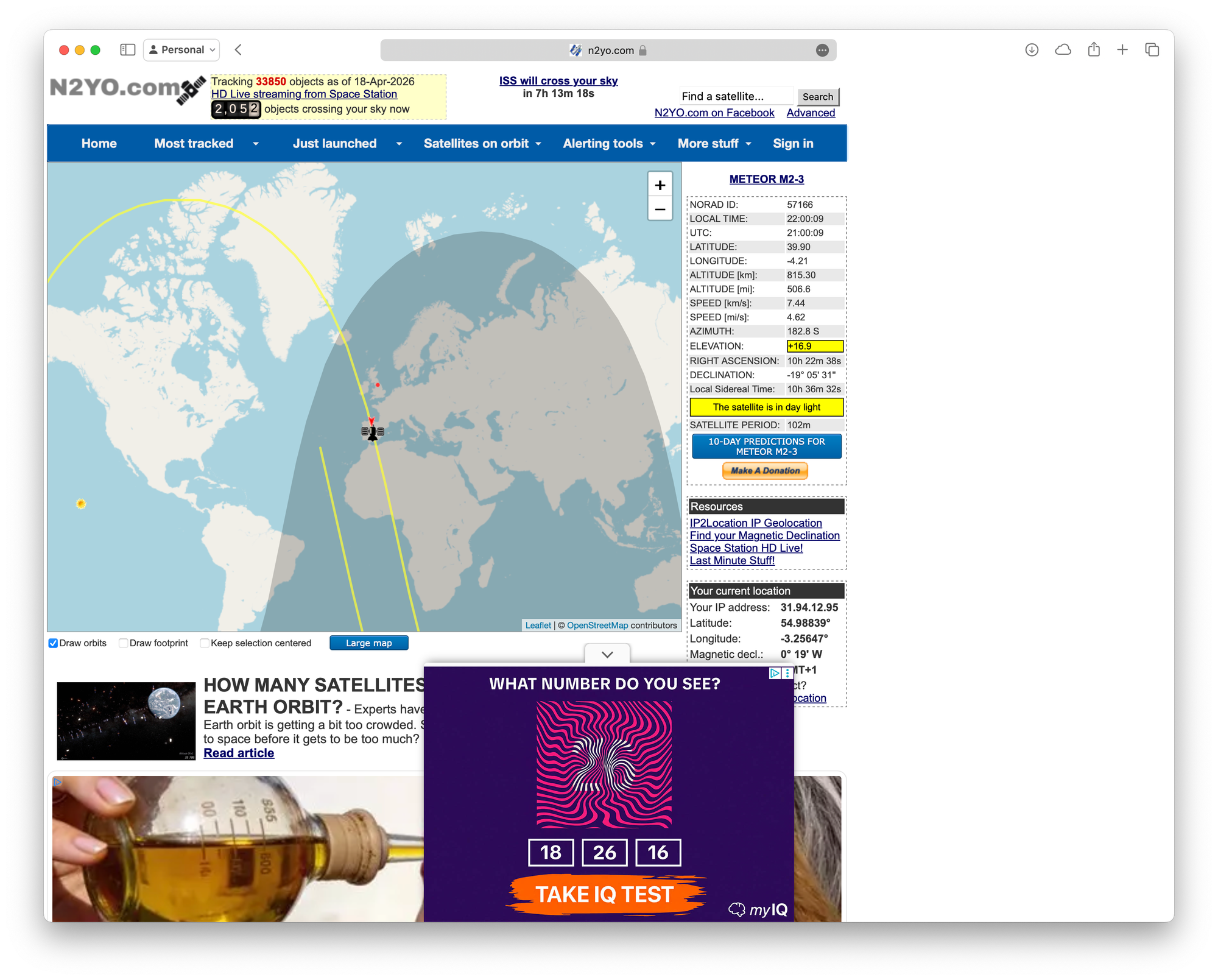
With the satellite tracker app showing Meteor-M N2-3 approaching from the south, I tuned SDR++ to 137.900 MHz with WFM (Wide FM) mode and 120 kHz bandwidth — the LRPT signal is about 120 kHz wide and requires wide FM demodulation.
LRPT signal structure: The Meteor-M LRPT transmission consists of two BPSK pilot carrier tones at fixed offsets either side of the centre frequency, with the image data transmitted as OQPSK modulation between them. On a waterfall display the signal appears as two bright vertical lines (the carriers) with a structured block of data between them. The horizontal banding visible in the data section is the image data — each horizontal stripe corresponds to a line of the weather image being transmitted in real time.
The signal appeared gradually as the satellite rose above my horizon — first as faint white lines, then strengthening to bright yellow, and finally orange at peak signal strength. The image data structure became clearly visible between the carriers as horizontal banded blocks.
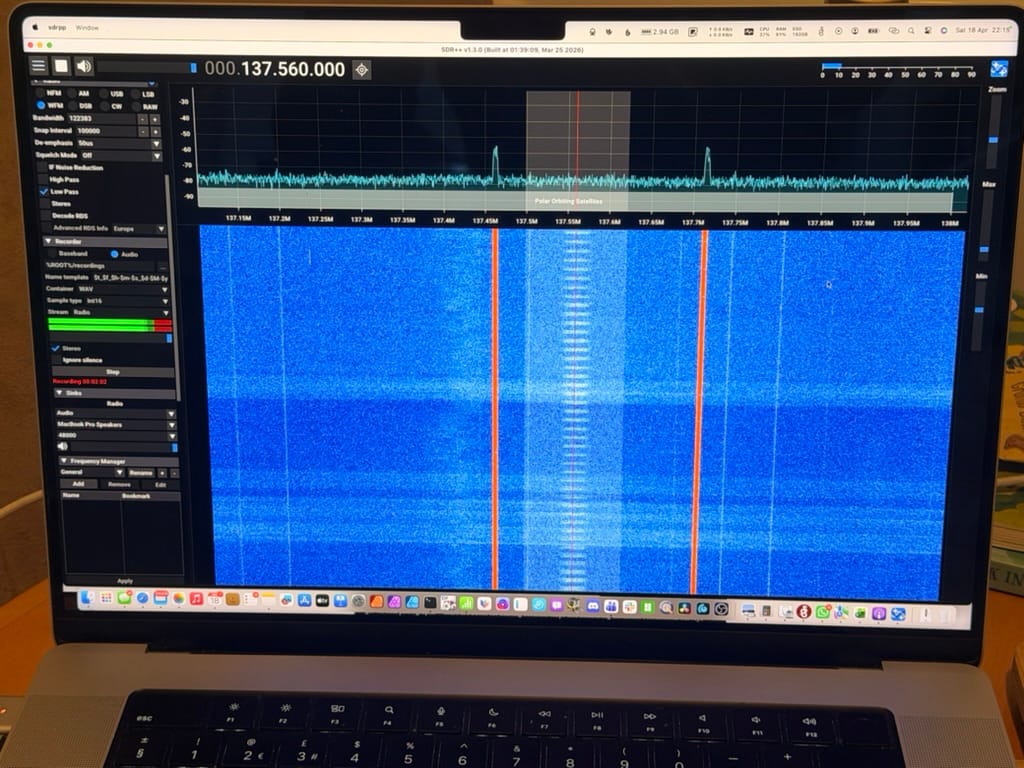
Signal strength colour scale in SDR++: Blue = noise floor. White = moderate signal. Yellow = strong signal. Orange/red = very strong signal. The transition from blue through to orange during a satellite pass directly reflects the satellite rising from the horizon, reaching maximum elevation overhead, then descending back to the horizon.
Recording and Decoding with SatDump
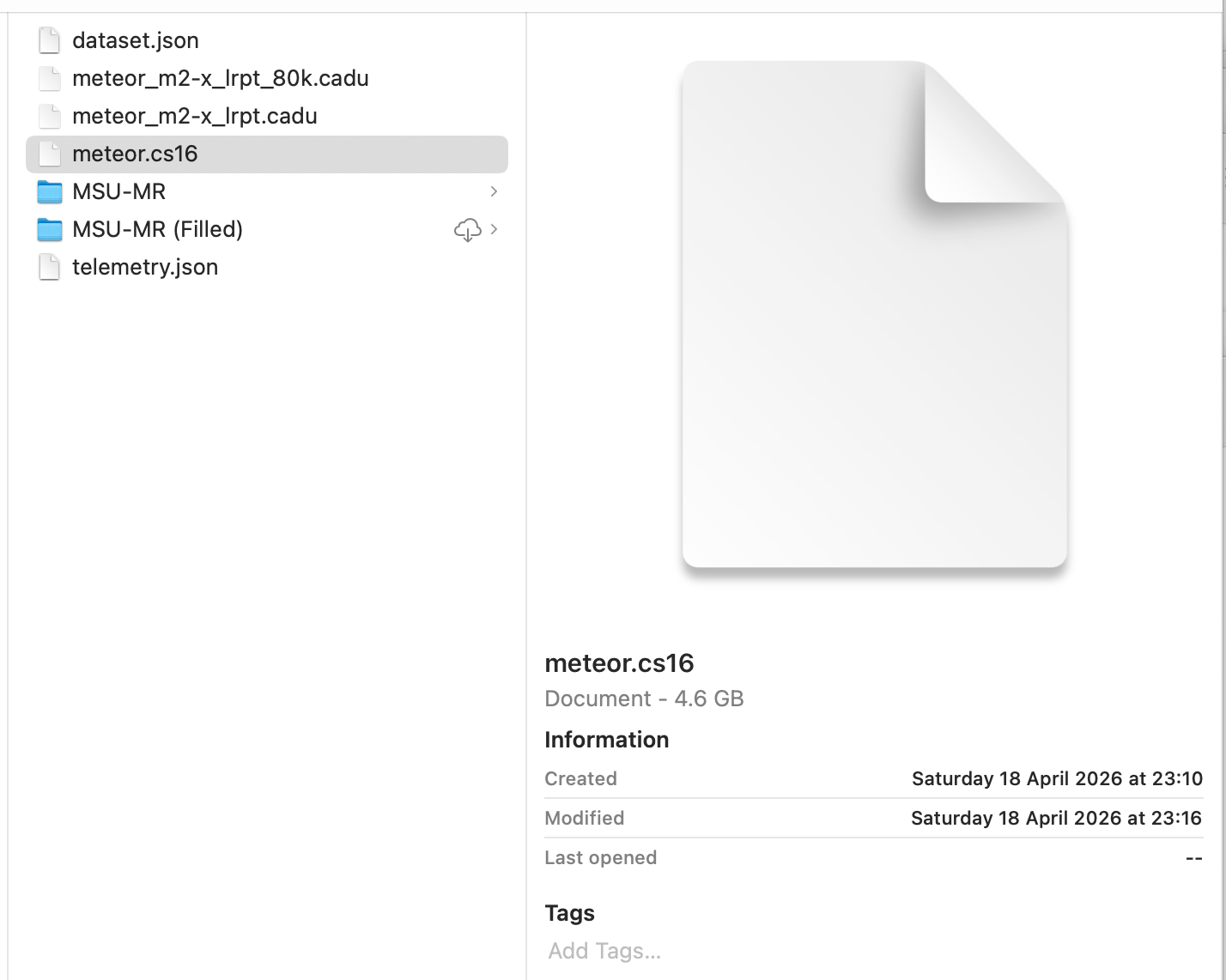
I hit record in SDR++ — but initially recorded as audio WAV rather than baseband IQ. Lesson learned: always record as baseband (cf32 format preferred) rather than audio. Audio captures only the demodulated output; baseband captures the raw IQ data that SatDump needs to decode images.
The corrected recording came out as a 4.6 GB WAV file (baseband, cs16, 2.4 Msps sample rate). The large file size is normal:
File size calculation: 2.4 million samples per second × 2 channels (I and Q) × 2 bytes per sample (16-bit) = 9.6 MB/s. A 8-minute pass produces approximately 4.6 GB. This is why cf32 (32-bit float) recordings can be even larger — but they're SatDump's preferred format and avoid the WAV 4GB file size limit that causes problems with cs16/WAV recordings.
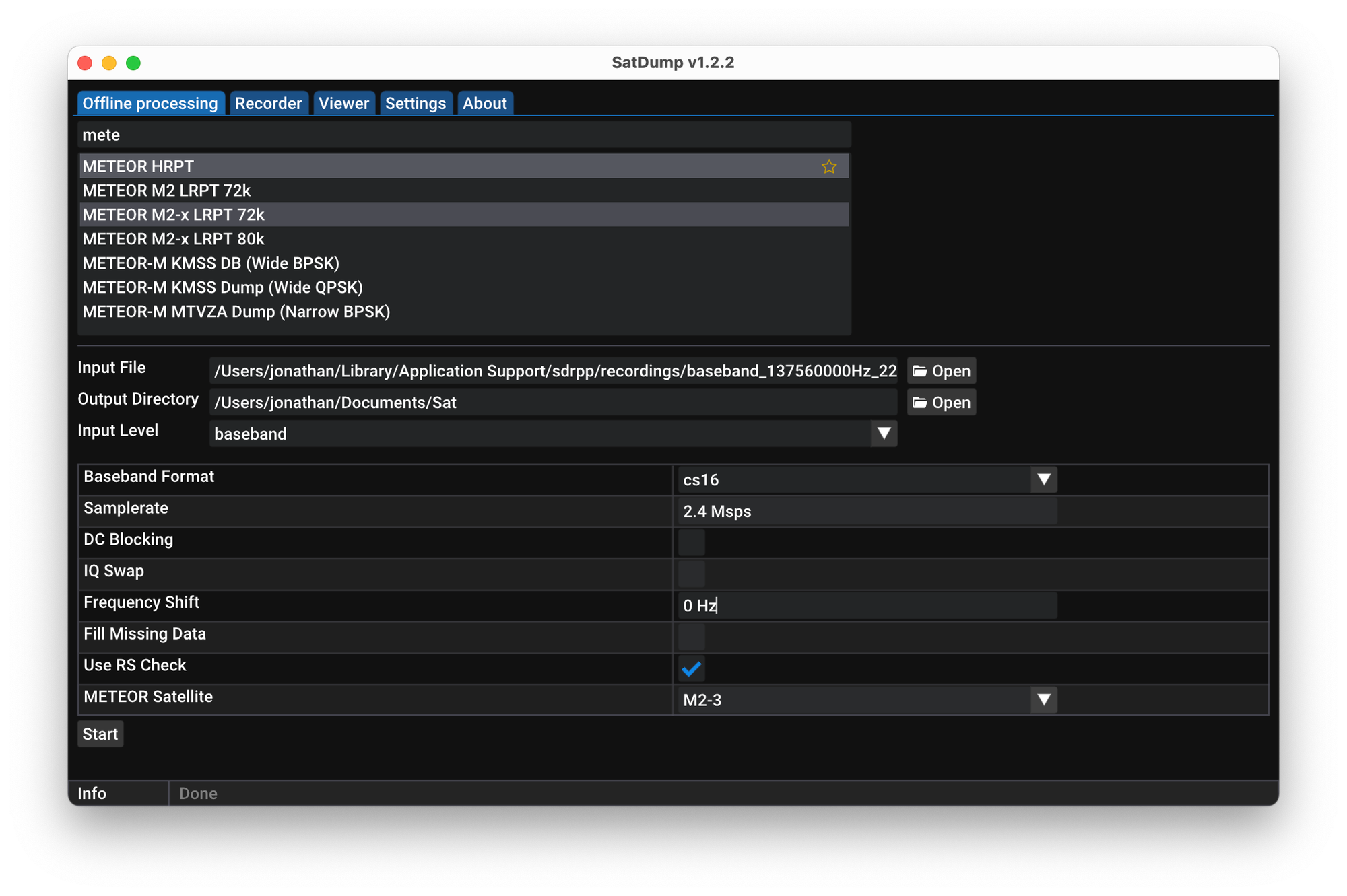
SatDump settings for Meteor-M LRPT decoding:
- Pipeline:
METEOR M2-x LRPT 80k - Baseband format:
cs16(orcf32if recorded in that format) - Sample rate:
2.4 Msps - DC Blocking: enabled
- Fill Missing Data: enabled
- IQ Swap: try both if NOSYNC
- Meteor Satellite:
M2-3
I achieved 3 out of 4 RS (Reed-Solomon) lock — meaning three of the four data channels decoded successfully. Not quite enough for clean image output, but a strong result for a first attempt with an indoor dipole on a northbound (receding) pass.
Reed-Solomon error correction: LRPT uses Reed-Solomon forward error correction across 4 channels. A 4/4 lock means all channels decoded cleanly and a high quality image will result. 3/4 means one channel is marginal — possibly decodable with frequency offset adjustment. The RS check failing entirely (NOSYNC) means the demodulator hasn't locked onto the signal at all, usually indicating a frequency offset or incorrect IQ polarity.
Key Lessons from the First Attempt
I was fully aware when I switched to baseband recording that I'd missed 99% of the signal. I'd recorded in WAV format for 10-11 mins, and by the time I figured out it was recording audio and not baseband, the signal was already deteriorating, so didn't expect much (and was appropriately rewarded).
- Record cf32 from the start — avoids the WAV 4GB limit and is SatDump's preferred format
- Southbound passes are better — the satellite approaching you gives rising signal; northbound means it's already past closest approach and receding
- High elevation passes (above 40°) give much stronger signal and better decode rates
- Get the antenna outside — even an open window makes a significant difference
- An LNA at the antenna feedpoint transforms weak pass reception
Resources
- SDR++: sdrpp.org
- SatDump: satdump.org
- 3dp-qfh design: github.com/LongHairedHacker/3dp-qfh
- QFH dimension calculator: jcoppens.com/ant/qfh/calc.en.php
- Satellite pass predictions: n2yo.com (NORAD ID 57166 for Meteor-M N2-3)
- RTL-SDR Blog LNA (UK): technofix.uk
- UK repeater directory: ukrepeater.net
- APRS tracking: aprs.fi